Pinterest is a powerful and wonderful search engine you need in your corner if you’re a content creator! It can help drive traffic to your site, as well as help your brand reach new people. Pinterest has over 450+ million active users each month, and your pins stay fresh and active longer than other social media posts. Pinterest Idea Pin is the latest feature to engage your audience with your content.
I could likely go on about Pinterest forever as I love it, creating pins is so much fun and I love doing SEO research for my pins. I know that most bloggers dread Pinterest, but honestly, once you learn how to use it properly it’s so helpful and easy!
If you’re someone who would rather spend time doing what you love with your business and don’t want to worry about Pinterest connect with me and we can chat about how I can help out Click here! Megan Johnson runs a fabulous course about how to use Pinterest, she updates it frequently and has a private Facebook group where you can ask questions – check out her courses here!
What is a Pinterest Idea Pin?
Idea Pins are the new Story Pins. Story Pins came about in September 2020, they’ve been introduced to folks based on individual access as they were testing what worked and didn’t. Currently, Idea Pins are available to creators in the following areas: US, UK, Australia, Canada, France, Germany, Austria, and Switzerland.
Idea Pins are multi-page format pins that share an idea or story. Static pins are pins that do not have animation and are a single pin, and video pins are pins that involve animation that is a single image. Idea pins allow for both of these pins to be in a multi-pin format.
What this means is if you have a recipe, you can take a couple of videos, or static/animated pins (up to 20 max) and create an idea pin that shows readers step-by-step how to follow the recipe and make the dish.
Why Should I Use an Idea Pin?
Idea pins are a great way to engage and interact with your readers/audience. It allows you to tell them more information than in a traditional static pin and allows you to add your own flare. Idea pins help bring your inspiration and passion to life!
Pinterest has done some updates to the app/websites recently so that idea pins are now at the top of your home feed. This means idea pins you make have the ability to be seen quickly and easily when folks interact with the home feed. Why is this important Alex? Well, the more eyes on your pins the more clicks and traffic that can come to your site!
Idea pins allow you the creator to really tell a story, or market/sell your item(s) to your audience. Who doesn’t want that?
What do Idea Pins include now?
Idea pins have a lot in common with story pins if you were a part of the beta testing group. If you’re new to idea pins then I’ll outline what you can expect when interacting with and creating them. The Pinterest Newsroom has outlined what to is now included in idea pins. Be sure to check out their site if you want additional information about this release.
- Video recording and editing for up to 20 pages of content
- Voice-over recording so creators can add their own personal voice
- Music selection by Epidemic Sound
- Ghost mode transition tools (perfect for those before-and-afters!)
- Detail pages for instructions or ingredients
- Interactive elements like people tagging and stickers
- Multi-draft save so Creators can publish more ideas
- Export options to share content beyond Pinterest
- Topic tagging, a publishing feature that helps connect content to relevant interest
How to create a Pinterest Idea Pin
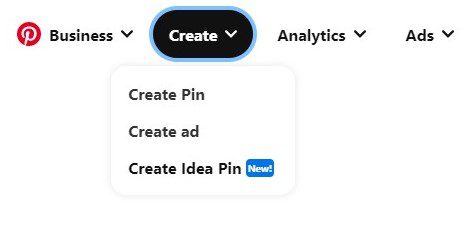
Now that you know what an Idea Pin is you’re likely wanting to know how to make them. So when on your Business Home Page, click the “Create” button on the top left. Under the Create tab, there is “Create an Idea Pin (NEW)” click that. This will bring you to an upload screen.
Upload all of your images, pins & or videos you want to be included in that idea pin. For example, I’ll upload 7 pins outlining my latest post with detailed content on each pin. Make sure the pins/videos match Pinterest Sizes, so you don’t lose any of your content.
Once uploaded – it will allow you to order, edit and change the layout of each pin. Simply click on each pin on the left-hand side to individually edit each. To re-order the pins just click and drag them into the order you would like. Play around with the layout options until you are happy.
When you click on the image it will warn you that some shorter devices may not see the full pin, so feel free to adjust and resize your pin as you’d like with click and dragging it once selected. Once you’re happy click the “Next” red button on the bottom left.
This will now bring you to the finishing touches page. You’ll need to add a title under Idea Pin Title, this is what will be seen by your audience. Then Click the board you’d like to pin it to, from the drop-down menu. Lastly, tag relevant topics, this won’t be seen when your audience. Once you’re happy with your pin then publish it!
You can also save idea pins as drafts if you click the top left X. It will store your pin for you to later publish. At this time you cannot schedule idea pins, and you cannot promote idea pins with ads.
Have fun with Pinterest Idea Pins
Lastly, you’ll want to play around with what you do! Have fun with it. Test out how much text you use, what colors and images you use. Maybe your audience is more attracted to videos so give those a try. Test and try different things and keep an eye on your analytics! Pinterest Idea Pin is a great new feature that will help boost engagement and therefore can drive traffic to your site.
Maybe creating and exploring Pinterest Idea Pin isn’t for you? If so, don’t want to worry about Pinterest- connect with me and we can chat about how I can help out Click here! Additionally, Megan Johnson runs a fabulous course about how to use Pinterest, she updates it frequently and has a private Facebook group where you can ask questions – check out her courses here!
Talk Soon!


I’ve not heard of the idea pins before so I’m definitely going to give this a try! Thank you for writing this informative post x
We have been trying them for a bit now and we love them! I just wish they would be linked to a post like the normal pins, hopefully they will do that soon x
I heard about Idea Pins, but I had no idea what exactly they were or how to make one. Although I’m still not great at Pinterest I think I will give the Idea Pin a try. Thanks so much for explaining it Alex! So helpful!
Thanks Della – have fun with them! They’re a great engagement booster and help others connect with your content. Thanks for reading and commenting.
Fantastic to hear! Yes, that’s on my list too, that along with scheduling I wish we could do both! Thanks for reading & commenting 🙂
Wonderful to hear Tiffany – I’m glad this post helped provide some information on how to create and use them! Have fun with them 🙂
Thank you for explaining them! I am so scared of trying new things. These are on my list to try soon, though. I just have to work up the courage! 🙂
Wonderful to hear this post was helpful! Have fun exploring idea pins and creating them 🙂 Thanks for reading and commenting.
Awesome to hear this guide was helpful, ideas pins can be so much fun I hope you enjoy exploring them! Wonderful to hear this guide was informative for you 🙂 Thanks for reading and commenting.
I personally really like the idea pins. They are such a great way for you to build your audience on Pinterest.
Wonderful to hear – they are cool aren’t they?! Happy pinning 🙂
I haven’t heard of idea pins before but I’m definitely going to give them a go! Thanks for sharing.
Thanks for this post. I have such trouble with Pinterest and I really want to grow my audience there!
Yeah! Have some fun with them – honestly they’re awesome for engaging with your audience and just being creative 🙂 Enjoy!
Have fun with idea pins! They’re a great way to connect with your audience 🙂 Happy pinning!
Great post. Packed full of useful information.
I’ve seen the idea pins but never played around with them. Something I will add to my list for this weekend 🙂
Yes – please do give them a try and see how your account reacts to them! They’re a great way to connect with your audience 🙂
Great! I did wonder what they were for. This is super helpful!
Amazing to hear this was helpful Jamie – they can be so amazing to connect with your engaged audience!