If you’ve ever wondered how to schedule Pinterest posts for free, let me introduce you to one of Pinterest’s most underrated tools: the Pinterest native scheduler.
This free Pinterest scheduling tool is built right into the platform—and it can be a total game-changer for business owners, bloggers, and content creators looking to save time, stay consistent, and grow smarter on Pinterest (without needing another monthly subscription).
So let’s break it all down:
What it is, how to use it, and why I recommend it over third-party schedulers if you’re just getting started.

What Is Pinterest for Business (and Why It Matters for Scheduling Pins)?
Before you can access the Pinterest native scheduler, you’ll need a Pinterest business account.
Why? Because Pinterest for Business gives you access to all the behind-the-scenes tools—like Pinterest Analytics, a content planner, and the ability to run ads.
Think of a business account as your content creation hub.
You’re not just saving cute recipes—you’re creating Pinterest pins designed to get clicks, drive traffic, and build your brand.
Once you’ve got your account set up, you’ll find the Pinterest pin scheduler directly inside the “Create” tab.
Where to Find the Pinterest Native Scheduler (Step-by-Step)
Ready to schedule pins without leaving the app? Here’s how to schedule Pinterest posts using the Pinterest native scheduler app (no downloads required):
- Log into your business account
- At the top-left of your screen, click Create > Create Pin
- Upload your pin image or video
- Add your pin title, pin description, alt text, URL, and board
- Scroll down to “Publish at a later date”
- Choose your date and time
- Click Publish
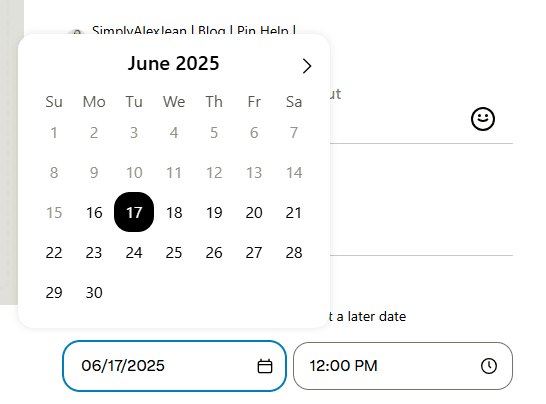

That’s it! Your pin is now scheduled—and will be automatically posted at the time you selected.
✅ Want to know how to schedule Pinterest pins for free up to 30 days in advance?
The Pinterest native scheduler free tool lets you do exactly that—up to 100 Pins across 30 days. That’s bulk scheduling made simple.
What Is a Pin (and What Can You Schedule)?
A Pin is simply a piece of content you post on Pinterest. It could be:
- A static image (like a blog post graphic)
- A short video
- A product photo
- A graphic linked to a freebie or lead magnet
There are a few types of Pinterest Pins:
- Standard Pins (most common)
- Video Pins
- Idea Pins (multi-slide, story-style content)
With the Pinterest native scheduler, you can schedule Standard Pins and Video Pins.
👉 Idea Pins can’t be scheduled using the native tool right now—they have to be published manually.
So, if you’re wondering how to schedule Pinterest pins, start with your blog posts, videos, and freebies—those are perfect for scheduled Pins!
Why Use the Pinterest Native Scheduler Instead of a Paid Tool?
While tools like Tailwind, Later, and Planoly are popular options, here’s why I still recommend the Pinterest native scheduler—especially if you’re just getting started:
- It’s completely free
- You can schedule Pinterest posts inside Pinterest—no switching tabs
- You’ll avoid the risk of third-party glitches or Pinterest API changes
- It’s aligned with Pinterest’s best practices (and yes, Pinterest prefers you use their tools)
One small downside? Once you schedule a pin, you can’t edit it. You can only delete or publish early.
But honestly? If you’re planning ahead with a Pinterest schedule template, that rarely becomes an issue.
Looking for a done-for-you template? I include one in my Pinterest High-Converting Template Bundle—perfect for batching pins fast.

How to Make the Most of the Pinterest Pin Scheduler
Here are a few of my favorite strategies (that I use with clients and in my own workflow) to get the most out of the Pinterest native scheduler:
✔️ Batch Your Pin Creation
Create your pins ahead of time using a design tool like Canva.
Then block off time to upload and schedule all your pins in one go—saving hours each month.
Wondering how many pins can you schedule on Pinterest? You can queue up to 100 at a time using this free Pinterest scheduling tool.
✔️ Use Strong SEO in Every Pin
Pinterest is a search engine, so your content needs to be searchable. Use keyword-rich titles, descriptions, and image names to help each specific pin rank in search results.
Want help creating a keyword system that works? My clients love using a custom keyword tracker to stay organized and searchable.
✔️ Space Out Your URLs
Pinterest can be sensitive to duplicate links. Repeating the same blog post URL every day can trigger Pinterest’s spam filter.
💡 Pro Tip: Schedule the same blog URL no more than once every 2–3 days. The Pinterest scheduler makes this easy to track with its “scheduled pins” view.
✔️ Post at Your Best Times
Inside Pinterest Analytics, use the 24-hour engagement data to find when your audience is most active.
Then use the Pinterest native scheduler to plan your content during those high-traffic windows for better reach and performance.
Want more growth strategies? 👉 How to Grow a Pinterest Account: Proven Strategies for Success
Pinterest Native Scheduler FAQs (Because You’re Probably Wondering)
How to schedule pins on Pinterest for free?
Use the built-in Pinterest scheduler. It’s 100% free and part of every business account.
How many pins can I schedule at once?
Up to 100 pins across 30 days. That’s ideal for bi-weekly or monthly batching!
Can I schedule video pins too?
Yes! Video pins can also be scheduled through the native tool—great for increasing engagement and video views.
What about other platforms?
If you want an all-in-one solution for Instagram, Facebook, and Pinterest, a paid tool may work better for you. But for Pinterest-only scheduling, this free Pinterest scheduling tool is one of the best Pinterest scheduler options out there.
The Only Thing Pinterest Impressions Don’t Do… Is Pay the Bills
While it’s easy to obsess over monthly views or Pinterest metrics like impressions, that’s not what builds your business.
Real growth comes from clicks.
And clicks lead to email signups, traffic, and sales.
To turn Pinterest into a lead-generating machine, you need a clear system for turning content into conversions.
✨ Want the blueprint? Grab my Leads & Visibility Guide for Pinterest—it walks you through how to grow your audience and drive results without chasing vanity metrics.
Or head over to 👉 How to Make Money with Pinterest: A Step-by-Step Guide for a deeper dive.
Pinterest Isn’t Instant (And That’s a Good Thing)
If you’re coming from platforms like Instagram or TikTok, it’s easy to expect fast engagement and instant results.
But Pinterest is a search-based platform, not a social feed.
Pins often take time to pick up momentum—weeks or even months. That’s completely normal.
The good news? Once a pin gains traction, it can bring consistent traffic and leads long after you’ve published it. That’s the power of Pinterest strategy that compounds over time.
And if you’re just getting started and want a clear roadmap, I’ve got something for you:
👉 Grab my FREE Starting with Pinterest Guide
It’s the perfect beginner-friendly resource to help you confidently start pinning, growing, and actually understanding Pinterest from day one.

Final Thoughts: Is the Pinterest Native Scheduler Worth It?
100% yes.
If you want to schedule Pinterest posts free, save time, and stay consistent without overcomplicating your strategy—the Pinterest native scheduler is a smart place to start.
✅ Easy to use
✅ Free to access
✅ Aligned with Pinterest best practices
✅ Ideal for batching, planning, and staying visible
Whether you’re a seasoned pinner or brand new, this tool helps you show up without burning out.
💬 Need a Strategy That Fits You?
If you’re ready to use Pinterest to grow your business—but want a plan that actually fits your life and goals—I’d love to help.
👉 Click here to book your free consultation call and let’s chat about your Pinterest marketing goals, content workflow, and how to make it all simpler.
You’ve got this—and I’ll show you how.
Happy Pinning!


This post has made me want to use a Pinterest scheduler! x
Lucy | http://www.lucymary.co.uk
I’ve not found pinterest scheduler that easy to use, so I’m still using Tailwind. I would also leave more time between urls, up to 10 days rather than 1. But now I’m using pinterest for my new blog I need to rethink how I’m doing it alongside my main blog content.
For some unknown reason, the scheduler disappeared from my Pinterest the last time I was on it a few days ago. I love using it so I am hoping it was a glitch. Great post!
I’m finally starting to see some growth with my Pinterest and I love their scheduler. Each Sunday I schedule my pins for the week! So much easier than having to do it each day (especially with my forgetful mind!).
The free Pinterest scheduler is what I use too, and has proved well! I really like the idea of your excel spreadsheet of keywords etc. for each pin – definitely going to try that x
Nice, I didn’t realise Pinterest had its on scheduler. I usually use Canva to create and schedule my social media content. I’m only now starting to use Pinterest for my blog. What’s the minimal amount of pins I should publish to gain traffic?
I love the scheduling tool on Pinterest, I use it every time I post. Having a spreadsheet with keywords is such a good idea, I may have to start doing that too
Wonderful to hear Lucy – give it a try and see if it works well for your Pinterest needs 🙂
It’s fantastic to hear you’ve learned what works best and Tailwind is that for you! Yes, you can leave as much as you’d like – the minimum is 1 but depending on how many URLs you have and how many pins you create a day spacing content out is always great. Best wishes as you navigate your blogs and Pinterest!
Oh no, there was a glitch last week where for some folks it did disappear. I heard from most that it’s back this week so fingers crossed it appeared again for you! I’m glad you find it works well for you!
Amazing to hear Vourneen – it’s incredible that you’ve created a schedule and routine that works for you and honestly scheduling is so fantastic especially when life gets busy! Thanks for reading and commenting.
I’m so glad that learning about bulk pins was helpful – just use the little plus sign on the side and it’s so much simpler 🙂 Happy Pinning!
Lovely to hear it works well for your Pin needs Caroline. Honestly keeping track of your keywords is such a big time saver – I hope it helps with speeding up your Pinterest time!
Canva also has a great scheduler built-in as well! The Pinterest Scheduler does have some nice features with bulk publishing which is nice as Canva is individual with scheduling. The number of pins depends on the age of your account and your overall strategy for Pinterest – if your account is fairly new it’s good to start with 1-to 2 a day. If you have a specific question feel free to email me!
I’m so glad to hear you find it helpful for how you use Pinterest. A keyword spreadsheet is honest so incredible and so helpful with speeding up your scheduling time – thanks for reading and commenting.